Generic TLP Data Group
CygNet "Generic TLP Data" data groups are logical collections of data group elements/items that correspond to and enable access of TLPs in a ROC database.
TLPs use a unique referencing scheme that associates a point type number, logical (or location) number, and parameter number in order to specify a TLP location. (TLP stands for point type, location/logic, and parameter.) Depending on the TLP accessed, you can read its data or write data to it. You can also map CygNet elements/items to any relevant TLP. Multiple "Generic TLP Data" data groups can be added to a remote device, and up to 30 data group elements/items can be defined for each "Generic TLP Data" data group.
These "generic" data groups enable you to access TLP data that is either not included in data groups predefined by CygNet or not organized in the way you require. For example, you might want to display data in a human-machine interface (HMI) screen from TLPs that are not included in a predefined CygNet data group. In such a case, you could create a "Generic TLP Data" data group made up of the TLPs and map UDCs to them for viewing in the HMI screen. Another example of the use of a "Generic TLP Data" data group is to reorganize collections of data group elements/items in a way more suitable to your needs. These data group elements/items could be a subset from a single predefined CygNet data group, a combination of data group elements/items from several predefined CygNet data groups, or even a combination of predefined CygNet data group elements/items and TLPs not already included in a CygNet data group.
Opcodes 166/167 and 180/181 are used to define a configurable TLP message. The "Generic TLP Data" data group uses Opcodes 180/181 by default to read/send individual TLPs. This can be overridden in the device template file by using the readOpCode and writeOpCode attributes. If you use Opcodes 166/167, parameters must be contiguous.
The following example shows how to specify Opcode 166/167 to write/read using a contiguous sequence of parameters for a point type and a logical number.
Note: You cannot add or remove data group elements to a predefined CygNet data group for this EIE. These predefined data groups follow strict messaging formats.
For more specific information about point type numbers, location/logical numbers, and parameter numbers, see the appropriate manufacturer-provided documentation.
Example
 Click here to see an example of the data group Click here to see an example of the data group
<GenTLP niceName="Generic TLP Data" devDG="false" autoAdd="0" dgDesc="Generic TLP Data" majorRev="1" minorRev="1" cfgTLP="true"> <dgElements> <Val01 desc="Value 01" type="vrnt" tlpType="0" tlpParm="0" tlpLog="0"/> <Val02 desc="Value 02" type="vrnt" tlpType="0" tlpParm="0" tlpLog="0"/> <Val03 desc="Value 03" type="vrnt" tlpType="0" tlpParm="0" tlpLog="0"/> <Val04 desc="Value 04" type="vrnt" tlpType="0" tlpParm="0" tlpLog="0"/> </dgElements> </GenTLP> <Send166 niceName="Send 166 via GenTLP" devDG="false" autoAdd="0" dgDesc="Send contiguous TLPs using the GenTLP datagroup" majorRev="1" minorRev="1" cfgTLP="true" writeOpCode="166" readOpCode="167"> <dgElements> <Octane desc="n-Octane" type="r4" tlpType="7" tlpParm="37" tlpLog="0"/> <Nonane desc="n-Nonane" type="r4" tlpType="7" tlpParm="38" tlpLog="0"/> <Decane desc="n-Decane" type="r4" tlpType="7" tlpParm="39" tlpLog="0"/> </dgElements> </Send166> |

Setting Up a Generic TLP Data Group
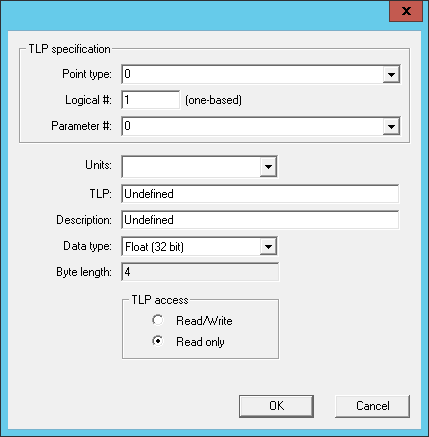
Setting up a "Generic TLP Data" data group is much like setting up any other data group. However, you must carefully select the point type number, location/logical number, and parameter number on an item-by-item basis in order to specify the correct location for a given TLP. This process is simplified by an automated lookup of the TLP and TLP description based on the manual entry of the TLP components.
Note: You cannot configure a user-defined point (UDP) with the Emerson ROC EIE. If you want to configure a UDP, directly access the affected field device and make configuration changes there. After that, use the Emerson ROC EIE to define the UDP for use in CygNet so you can read its data or write data to it.
To Add and Configure a Generic TLP Data Group
- Open CygNet Explorer.
- Click Device Definition Service (DDS) in your service hierarchy.
- Locate the Emerson ROC remote device you want to alter and double-click it.
- Click the Data Group page.
- Click Add.
- Double-click Generic TLP Data from the Select Data Group to Add list.
- Set properties for the data group, like Ordinal, Description, and Facility ID. Ordinal pre-populates based on the sequence in which this "Generic TLP Data" data group is being added. You can overwrite the default setting.
- Click Configure to define your data group elements/items. These elements/items correspond to TLPs in a ROC database.
- On the Generic TLP Datagroup Definition dialog box that appears, highlight an element and either double-click it or click Edit Element.
- Select the point type from the Point Type drop-down menu or type it in. Doing so determines your Parameter # options.
- Type the logical (or location) number in the Logical # field. TLP logical numbers in the ROC protocol are one based.
- Select the correct parameter number from the predefined Parameter # drop-down menu or type it in. Doing so automatically sets TLP name, Description, Data Type, Byte Length, and TLP Access.
- Select the appropriate units from the Units drop-down menu. Units match the units configured for this TLP point on the actual field device. They must also be the same as the Primary Units in the corresponding points configuration record in the PNT or they must share a defined conversion. If Units is blank (the default), the point's units in the PNT must also be blank.
- If this is a user-defined data point (UDP), also define the Description, Data Type, and TLP Access fields and options
- When you are done, click OK.
|
Generic TLP Datagroup Definition Dialog Box |
- Repeat for all required TLP data group elements/items.
- Click OK to save your data group element/item settings.
- At the Data Group Properties dialog box, click OK to save the TLP data group.
- Click Apply to save changes to the Emerson ROC remote device.
To Edit Generic TLP Data Group Elements
- Open CygNet Explorer.
- Click Device Definition Service (DDS) in your service hierarchy.
- Locate the Emerson ROC remote device you want to alter and double-click it.
- Click the Data Group page.
- Select the Generic TLP Data data group you want to edit from the Data Groups list and click Properties.
- Click Configure to edit your data group elements/items.
- On the Generic TLP Datagroup Definition dialog box that appears, highlight an element and either double-click it or click Edit Element.
- Edit standard TLP parameters (Point Type, Logical #, Parameter #, and Units) according to your needs.
- Click OK to save your data group element/item settings.
- At the Data Group Properties dialog box, click OK to save the TLP data group.
- Click Apply to save changes to the Emerson ROC remote device.

